How to Enable Ray Tracing in Minecraft Bedrock Edition (And Why the Toggle Is Greyed Out)
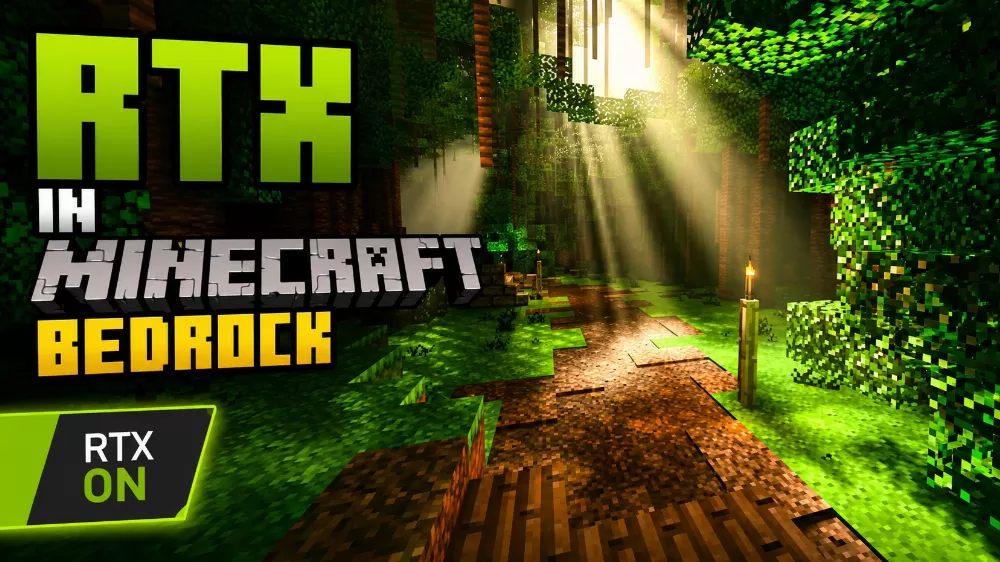
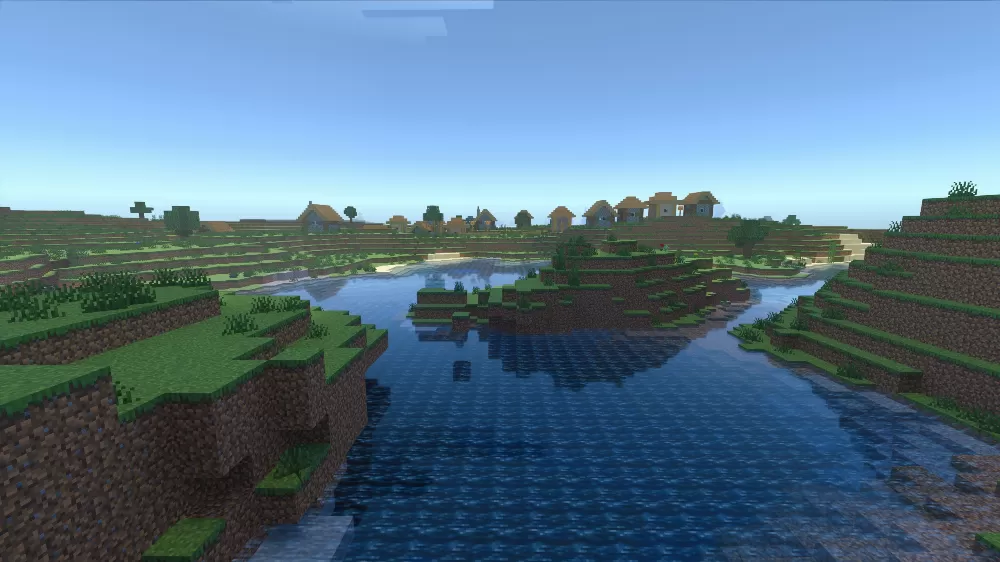
Ray tracing in Minecraft Bedrock turns the game into something visually unrecognizable: realistic shadows, light that bounces off surfaces, water that reflects the sky. But getting it running isn't as simple as flipping a switch. There are hardware requirements, a resource pack step that most people miss entirely, and a settings toggle buried at the bottom of the video menu. Here's how to get it all working.

Hardware Check
You need an NVIDIA RTX card (2060 or newer) or an AMD GPU with RDNA 2 architecture (RX 6700 XT and up). GTX cards don't support it at all. Windows 10 or 11 with DirectX Raytracing is required, and your GPU drivers should be fully up to date. For smooth performance at 1080p, an RTX 3070 or better is recommended. Xbox Series X supports ray tracing natively without any of this setup.
The Resource Pack Requirement
This is where most people get stuck. The ray tracing toggle stays greyed out even on supported hardware because Bedrock needs a resource pack containing physically-based material data. Default textures don't include information about surface roughness, metallic properties, or light emission, so the engine has nothing to work with. Without the right pack installed and activated, the option simply won't appear.
Setup
Download an RTX resource pack (Vanilla RTX is the most popular free option). If it's a .mcpack file, double-click it and Minecraft will import it automatically. Then open Settings, go to Global Resources, find the pack under My Packs, and activate it.
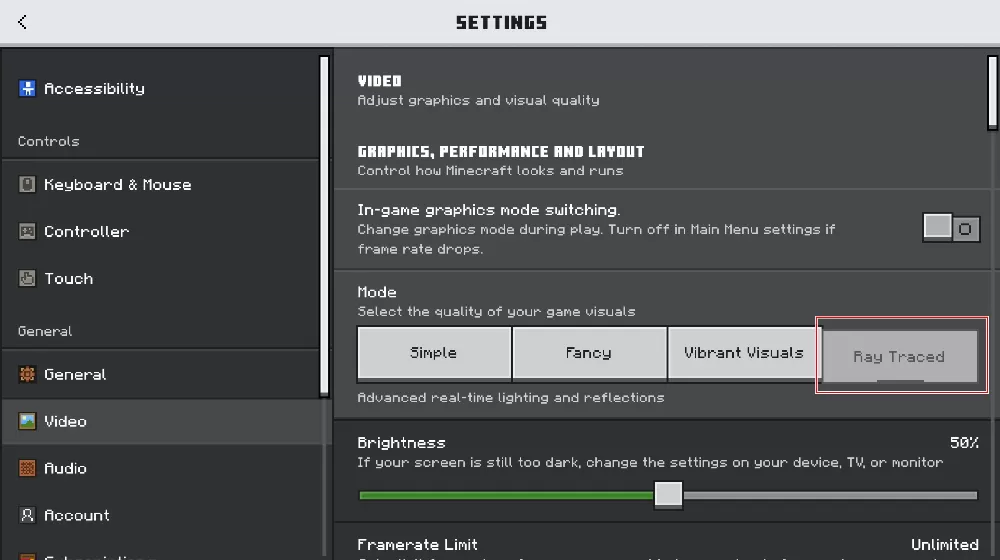
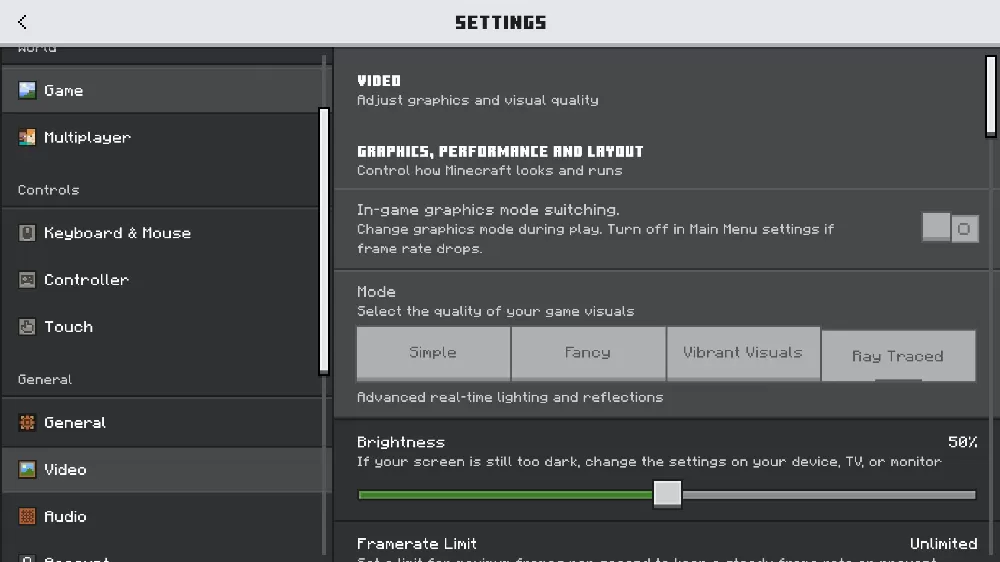
Next, go to Settings, then Video, scroll to the bottom and turn on Allow In-game Graphics Mode Switching. This step is easy to overlook and nothing works without it. After that, load any world, open Video settings from inside the world, and change Graphics Mode to Ray Traced.
If Textures Look Off
There's a known bug where surfaces appear overly glossy or broken after first enabling ray tracing. The fix is to go back to the main menu, deactivate the resource pack in Global Resources, reactivate it, and reload the world. You may need to repeat this once or twice.
Vibrant Visuals: The Lighter Alternative
If your hardware can't handle ray tracing or the setup feels like too much, Vibrant Visuals is a built-in graphics mode that adds improved lighting, reflections, and shadows without needing an RTX GPU or any resource packs. Just enable Graphics Mode Switching in Video settings and select Vibrant Visuals from inside a world. It's less dramatic than full ray tracing but runs on a much wider range of hardware and looks noticeably better than the default renderer.
Which One to Pick
Go with ray tracing if you have the GPU for it and want the best possible lighting. Go with Vibrant Visuals if you want a visual upgrade that works out of the box with no extra downloads. You can switch between them per world, so try both and see what your hardware handles comfortably.
Common Issues
- Ray Traced option greyed out: check that your GPU supports DXR, drivers are current, and an RTX resource pack is activated
- Graphics Mode Switching missing: update Minecraft to the latest version
- Low frame rate: drop render distance to 8-12 chunks, enable DLSS or FSR, and close background apps
- VSync killing performance: disable VSync inside Minecraft and enable it through your GPU control panel instead
- DLSS not working on RTX 50-series: the game ships with an older DLSS library that doesn't support the newest cards. The Vanilla RTX App can update it automatically
Most ray tracing issues come down to a missing resource pack or an outdated driver. Once you get past the initial setup, it works reliably and the visual difference is worth the effort.