Minecraft Bedrock Crossplay Guide: Join Friends on PC, Phone and Console
Minecraft Bedrock Edition supports crossplay, so players on Windows, Android, iOS, Xbox, PlayStation and Nintendo Switch can all join the same world. In practice, most connection problems come down to a few things: a mismatched game version, the wrong edition on PC, a missing console subscription or blocked privacy settings. Below is what you need to set up, the different ways to connect and how to fix the most common issues.

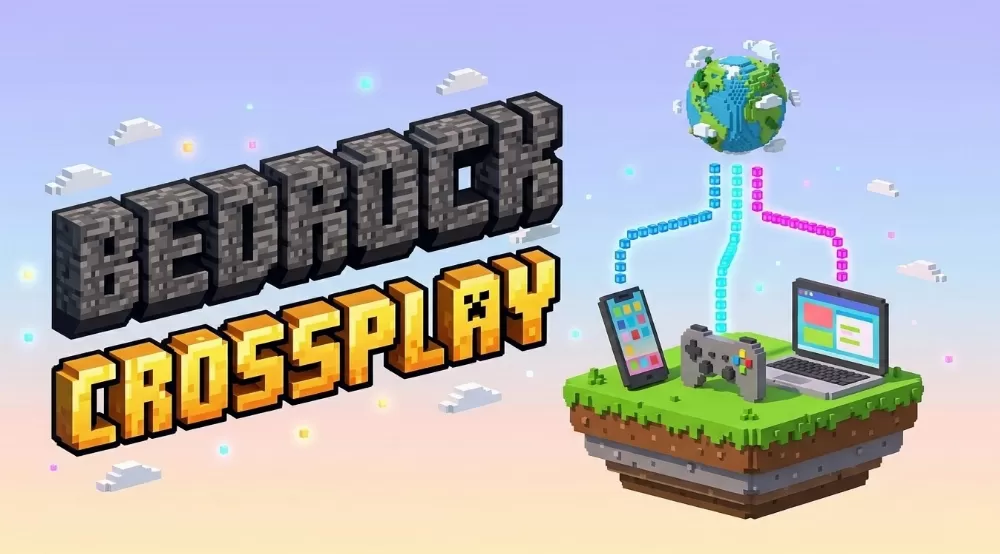
What you need for crossplay
- Bedrock Edition on every device. Crossplay only works between Bedrock versions of the game.
- The same game version. If one player has 1.21.100 and another is still on an older update, they will not be able to join each other. Update the game on all devices before playing.
- A free Microsoft account. Every player has to sign in, since friends, invites and Realms are all tied to the account.
- Each other in your friends list. Add friends by their exact gamertag.
- An online subscription on consoles. PlayStation needs PS Plus, Nintendo Switch needs Nintendo Switch Online, and Xbox needs Game Pass Core (or Ultimate) for online multiplayer.
Java and Bedrock cannot play together
Java Edition and Bedrock Edition are separate games with different servers, and players on one cannot join worlds on the other. This mostly confuses PC players, because the Minecraft launcher on Windows includes both versions in one bundle. If your friends play on phones or consoles, make sure you start Minecraft for Windows (Bedrock), not Minecraft: Java Edition.
Ways to play together
Local network (LAN)
If everyone is on the same Wi-Fi, this is the easiest option. The host opens the world settings, goes to the Multiplayer section and turns on Visible to LAN Players. The world then shows up in the Friends tab for everyone on the same network. LAN play works on consoles even without a paid subscription, which makes it handy for playing at home.
Friends over the internet
When you play from different places, add each other by gamertag. The host loads a world with multiplayer enabled, and it appears in the Friends tab of everyone on their friends list under Joinable Friends. You can also send a direct invite from the pause menu with the Invite to Game button.
Realms
Realms is a paid private server from Mojang that stays online all the time, even when the owner is offline. It suits groups that want a shared survival world everyone can join whenever they like. Only the Realm owner and players with operator permissions can use commands, so decide in advance who will manage the world.
Featured servers
If you just want to jump into minigames together, open the Servers tab and pick one of the featured servers. They are free to join, and you can party up with friends on different devices to play the same modes.
Check your Xbox privacy settings
If everything above is set up and friends still cannot join, the problem is usually in the account privacy settings. Sign in at account.xbox.com, open Privacy & online safety and make sure these two options are set to Allow:
- You can join multiplayer games
- You can join cross-network play
On child accounts, these settings are controlled by the parent through the family group, so a parent has to change them from their own account.
Common problems and fixes
- The friend's world does not appear. Check that both players are on the same game version, that the host has multiplayer enabled in the world settings and that you are actually friends, not just following each other.
- A PlayStation or Switch player cannot connect. The online subscription may have expired. Renew PS Plus or Nintendo Switch Online and restart the game.
- LAN world is not visible. Make sure all devices are on the same Wi-Fi network and not a guest network, and that Visible to LAN Players is turned on.
- Friend request does not arrive. Double-check the gamertag spelling, including numbers and spaces, since even a small typo sends the request to a different player.